User manual · Agents
AI assistance
The on-demand and automatic AI help available on a ticket, and what happens when it is not set up.
This page shows you the AI assistance available on a ticket: actions you can run yourself, insights that already appear on the ticket, and what to expect if your organization has not set AI up.
Every AI result on this page is a suggestion for you to review. Nothing it produces is applied to the ticket on its own, except for the two automatic insights described below, and those are limited to routing and confidentiality decisions the system is explicitly allowed to make by itself.
On-demand AI actions
The "AI assist" panel on a ticket's page offers three actions:
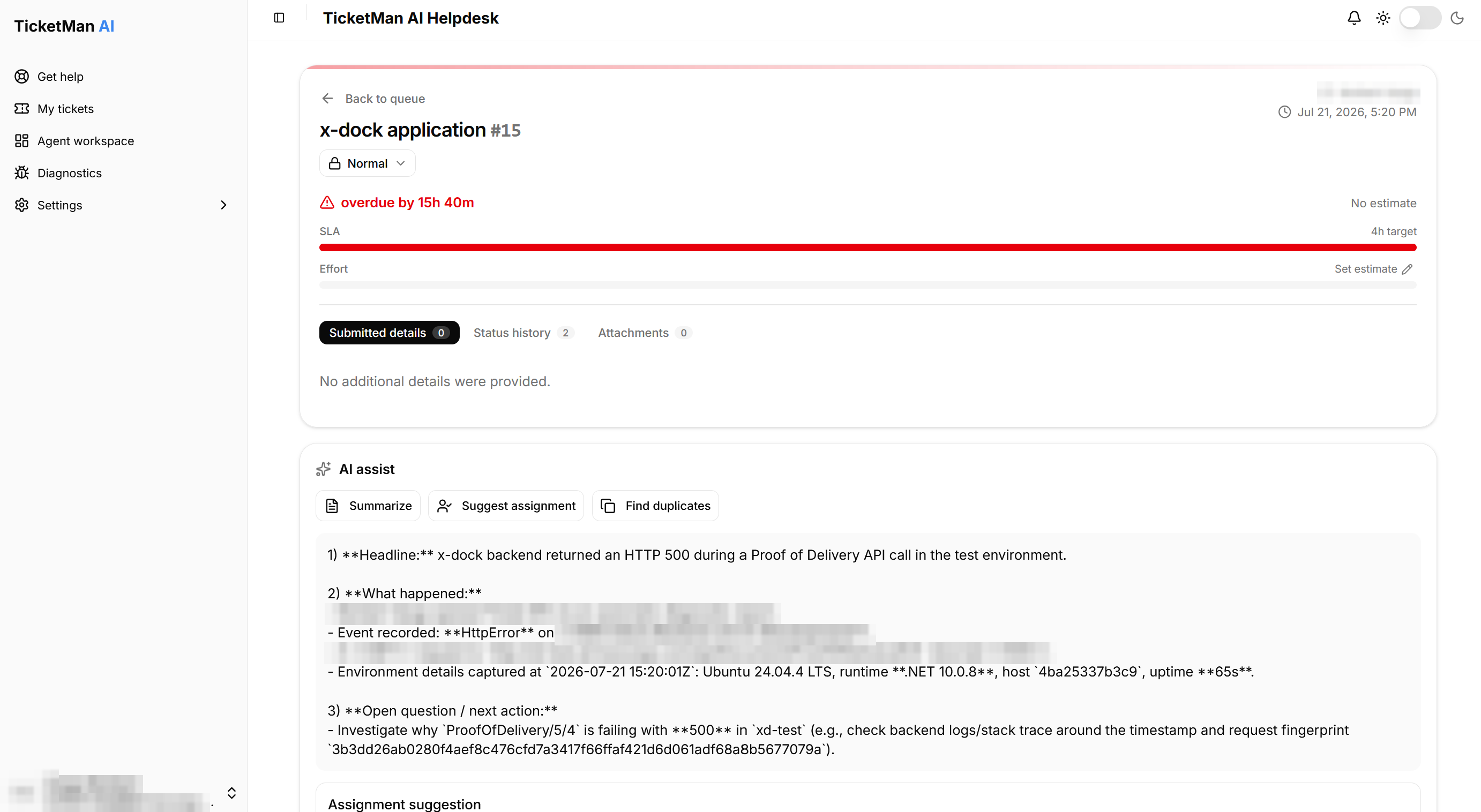
- Summarize: writes a short summary of the ticket so far.
- Suggest assignment: proposes a team or agent to hand the ticket to, with a confidence percentage and, when available, its reasoning.
- Find duplicates: looks for other tickets that may be about the same thing, each with a confidence percentage and, when available, a reason.
Select any of the three buttons to run it. If nothing confident comes back, the panel says so plainly ("No confident target found." or "None found.") rather than guessing.
Automatic insights already on the ticket
Two kinds of insight can appear on the panel without you asking, because a background process already ran them for this ticket:
- Auto-routed: shown when the ticket was assigned automatically. It states what happened (assigned by AI, or by a fallback team when nothing was confident enough), who or what team it went to, a confidence percentage, and the reasoning behind it.
- Confidentiality safeguard: shown when a check has run on whether the ticket's confidentiality level needed raising. It states the outcome ("Raised", "Abstained", or "Failed"), the level it raised the ticket to if it did, a confidence percentage, and the reasoning. See "Confidential tickets" for what the levels mean.
Both cards state what the system actually did, not just a suggestion, and both show when the decision was made.
AI help while replying
The reply box on a ticket's conversation offers three more AI actions, described in "Conversations and replies":
- Positive reply and Negative reply: draft a reply in that tone and place it in the box for you to edit.
- Beautify: rewrites whatever you have already typed.
You always review and edit the result before sending; nothing is sent on your behalf.
When AI is not set up
AI features are optional and are turned on by an administrator. If your organization has not set them up, these actions and cards are simply absent or produce no result when you try them. Tickets work the same either way: nothing about creating, updating, assigning, or replying to a ticket depends on AI being available.