User manual · Agents
The ticket workspace
How to read the dashboard, filter and sort the queue, and act on one or many tickets at once.
This page shows you how to read the ticket workspace: the charts at the top, the queue of tickets below them, and the ways to search, filter, and act on tickets from the list.
Select "Agent workspace" in the left menu to open it.
Reading the numbers
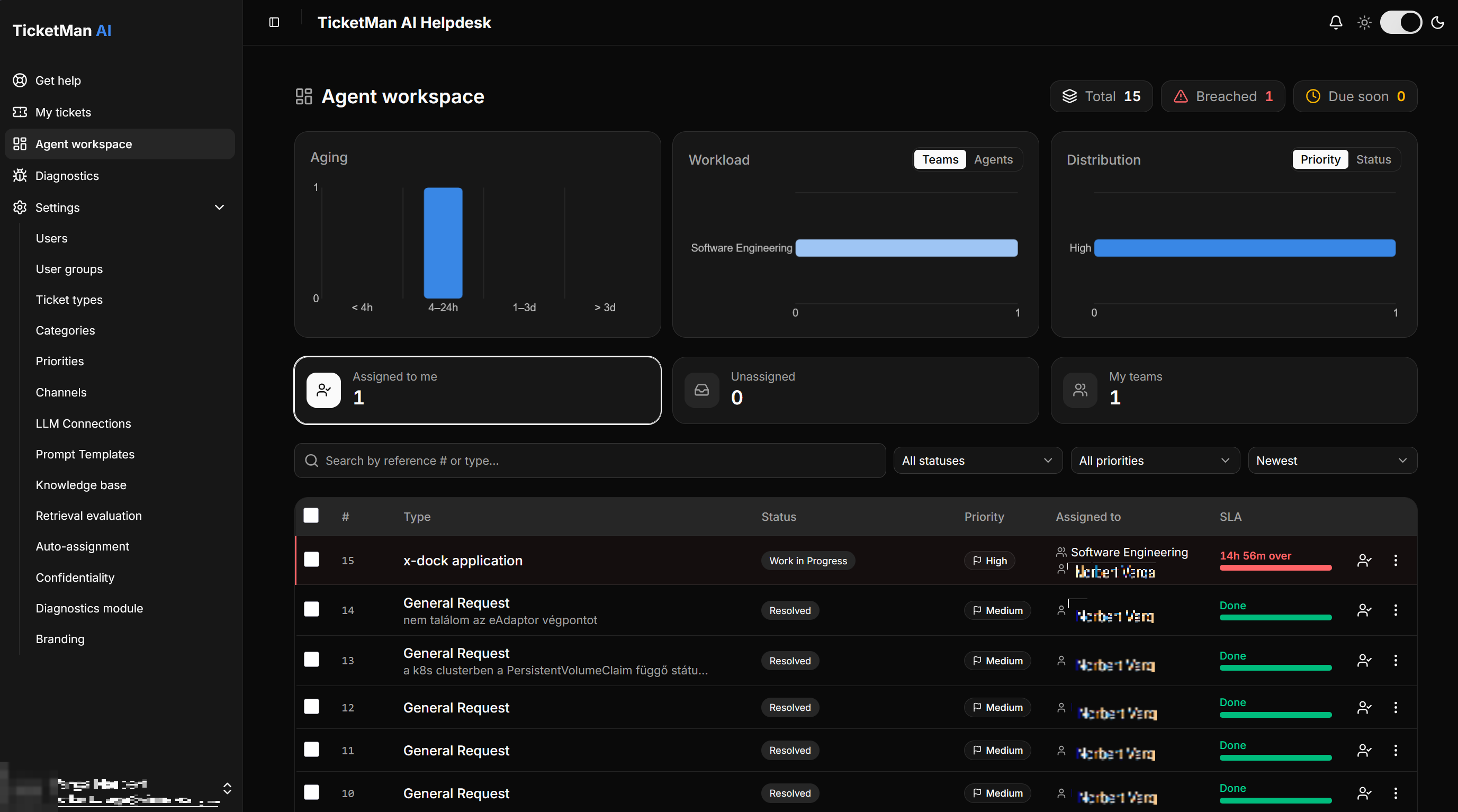
Three counters sit at the top of the page: "Total", "Breached", and "Due soon". They count every ticket you can see, not just the ones in the current filter, and they update as tickets change.
Below the counters are three charts:
- Aging: how long open tickets have been waiting, grouped into bands from under 4 hours up to more than 3 days.
- Workload: how many tickets each team or agent currently carries. Use the "Teams" and "Agents" buttons above the chart to switch between the two views.
- Distribution: how tickets split by "Priority" or by "Status". Use the buttons above the chart to switch.
Select a bar in any chart to filter the queue below to just that slice. A "Drilled into" label then appears above the list; select "Clear filter" next to it to remove the chart filter.
Choosing a bucket
Three cards let you scope the queue to a group of tickets:
- Assigned to me: tickets assigned to you personally.
- Unassigned: tickets nobody has taken yet.
- My teams: tickets assigned to any team you belong to.
Select a card to switch the queue to that bucket. The number on each card is how many tickets are currently in it.
Searching, filtering and sorting
Above the ticket list:
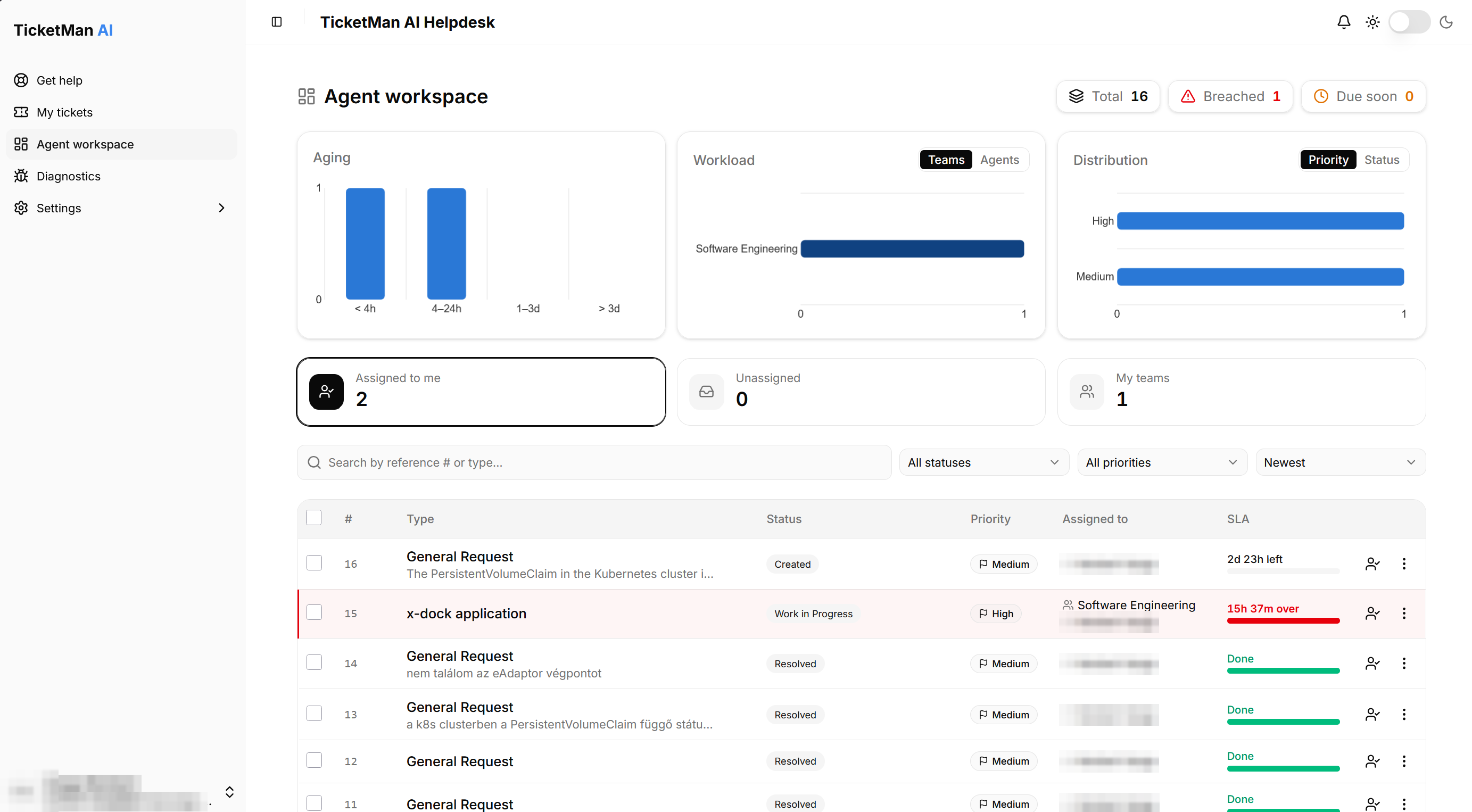
- Type into the search box ("Search by reference # or type…") to find a ticket by its number or its type.
- Use the status dropdown to show only tickets in one status, or leave it on "All statuses".
- Use the priority dropdown the same way, or leave it on "All priorities".
- Use the sort dropdown to order the list: "Newest", "Oldest", "Priority", or "SLA urgency" (soonest deadline first).
If nothing matches your search or filters, the list tells you so.
Reading a row
Each row (a card, on a small screen) shows the ticket number, its type, a short preview of what it is about when one is available, its status, priority, who it is assigned to, and its "SLA": how much time is left before its deadline. The SLA bar fills up and changes color as the deadline gets closer, and turns red once the deadline has passed. A ticket that has already been resolved shows "Done" instead.
If nobody has picked up a ticket yet, its assignee shows as "Unassigned".
Some rows only show "Confidential ticket", with a status badge and a confidentiality level badge and nothing else. These are tickets you do not have full access to. See "Confidential tickets" for what this means.
The list updates on its own as tickets are created, changed, or assigned by someone else. You do not need to refresh the page.
Acting on one ticket
Each row has an "Assign to me" button and a menu (the three-dot button) with more actions:
- Assign to me: takes the ticket.
- Assign to team…: opens a search dialog to pick a team.
- Assign to agent…: opens a search dialog to pick an agent.
- Unassign: clears the current assignment.
To assign a ticket to a specific team:
- Open the row's menu and select "Assign to team…".
- Search for the team, or pick from "My teams" or "All teams".
- Select the team. The ticket is reassigned immediately.
Assigning to a specific agent works the same way through "Assign to agent…".
Select anywhere else on a row to open that ticket.
Acting on several tickets at once
Select the checkbox on one or more rows to start a selection. A bar appears at the bottom of the screen showing how many tickets are selected, with "Assign to me", an "Assign…" button, and a button to clear the selection. "Assign…" opens the same team and agent search dialogs described above, and applies your choice to every selected ticket at once.
Tickets you only see as "Confidential ticket" cannot be selected.
Notifications
A bell icon sits at the top right of every page. A red badge with the number of unread notifications appears on it when something needs your attention:
- a ticket is assigned to you,
- a ticket is assigned to one of your teams,
- a requester posts a new message on a ticket assigned to you,
- a ticket assigned to you is reopened,
- the priority of a ticket assigned to you changes.
Where a ticket has no personal assignee, the new-message and reopen notices go to every member of its assigned team instead. Changes you make yourself never notify you.
Select the bell to open the list. Selecting a notification jumps to that ticket and marks it as read; "Mark all as read" clears every unread mark at once. If you do not have TicketMan open when one of these happens, the notice is sent to you by email instead.