User manual · Requesters
Welcome to TicketMan
How to sign in to TicketMan and find your way around after you log in.
After reading this page, you will know how to sign in, what the main screen looks like, and how to change the language and the light or dark look.
Signing in
TicketMan uses your organization's Microsoft work account, the same one you use for email and other work tools. There is no separate TicketMan password to remember.
- Open the TicketMan web address your organization gave you.
- Sign in with your work email address and password on the Microsoft sign-in page.
Once you sign in, you land on the "Get help" page.
What you see after signing in
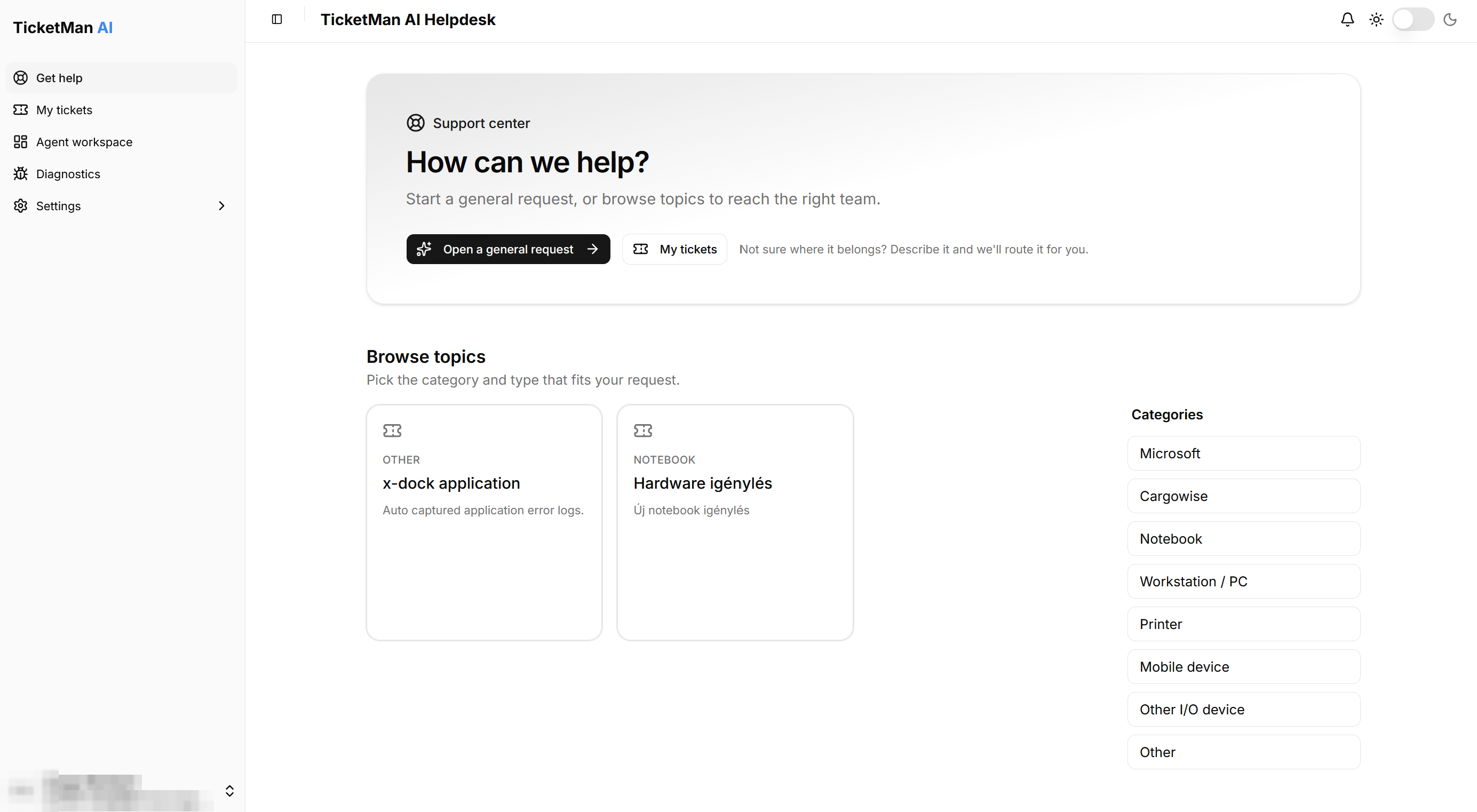
The screen has three parts:
- A menu on the left with "Get help" and "My tickets". This is where you go to open a new request or check on one you already sent.
- A bar at the top of the page with the page title, a notification bell, and a light or dark mode switch.
- Your name at the bottom of the left menu. Selecting it opens a menu with the language setting and the option to sign out.
Changing the language
- Select your name at the bottom of the left menu.
- Point to "Language".
- Choose English or Magyar (Hungarian).
The page updates right away, no reload needed.
Switching between light and dark mode
A sun and moon switch sits in the top right corner of every page.
- Select the sun icon for a light background, or the moon icon for a dark background.
Your choice is remembered the next time you sign in.
Notifications
A bell icon sits at the top right of every page, next to the light and dark mode switch. When something happens to one of your tickets, for example its status changes or the support team replies, a red badge with the number of unread notifications appears on the bell.
- Select the bell to open your list of notifications.
- Select a notification to open the ticket it is about. This also marks it as read.
- Select "Mark all as read" at the top of the list to clear every unread mark at once.
Most of these updates are also sent to you by email. The page "Following your ticket" lists exactly when you are notified.
That covers signing in and the basics of the screen. The next page, "Getting help", shows you how to open a request.