User manual · Agents
Confidential tickets
What the confidentiality level badges mean, what a redacted ticket looks like, and how to raise or lower a level.
This page shows you what a ticket's confidentiality level means, what you see when a ticket is outside your circle, and how to change a level.
The three levels
Every ticket carries a confidentiality level, shown as a badge with a lock icon:
- Normal: every agent can see it. No badge is shown for this level, unless you are looking at the level menu itself.
- Confidential: only the ticket's assignment team and its assignee can see it.
- Restricted: only the ticket's assignee can see it.
The requester who submitted the ticket, and administrators, can always see their own ticket regardless of its level.
What a redacted ticket looks like
If a ticket's level puts it outside your circle, you do not get an error. Instead you see a redacted version of it:
- In the workspace queue, the row shows only "Confidential ticket" in place of its subject, along with its status and level badge. You cannot select it for bulk actions, and search or chart filters never bring it back.
- If you open it directly, the page shows a lock icon, the ticket number, a short explanation that it is confidential and only its assignment circle can see the content, its status and level badge, and its created and last modified dates. Nothing else about the ticket is available to you.
Screenshot coming soonA redacted ticket
Changing a level
If you have full access to a ticket, you can change its level from the header on the ticket's page.
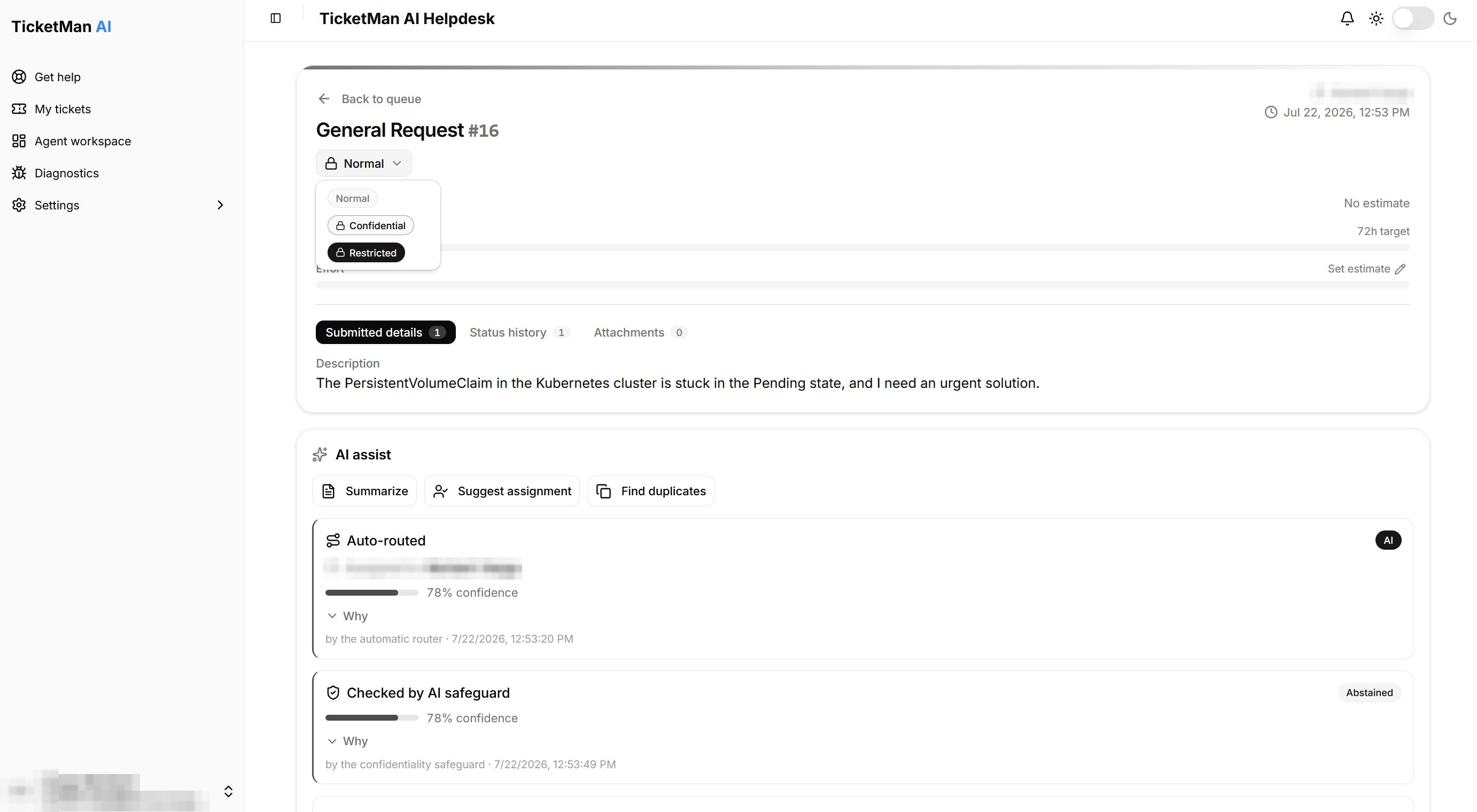
- Select the level badge next to the ticket's title. It shows a dropdown of the three levels.
- Choose a level.
Raising the level (for example, from Normal to Confidential) applies right away. Lowering it asks you to confirm first, since it widens who can see the ticket: a dialog explains that the change is audited and that an automatic rule may raise the level again later. Select "Lower it" to confirm, or "Cancel" to back out.
Automatic rules in TicketMan can also raise a ticket's level on their own, for example when it lands in a monitored mailbox or is assigned to a team with a higher minimum level. These rules can only raise a level, never lower one; lowering is always a deliberate choice by a person with full access. An AI safeguard can also raise a level on its own when it is set up; see "AI assistance" for how that appears on the ticket.